
If you run a residential service business, Jobber is likely the first name you heard when you started looking for software. It is the “Apple” of the field service world: slick, intuitive, beautiful, and designed to just work without a manual.
But is it powerful enough for your business?
For a solo operator or a team of 5, Jobber is a game-changer. It replaces the whiteboard, the Sunday night paperwork functionality, and the “Where is that invoice?” panic with a unified command center.
However, as you scale past $3 million or 20 trucks, cracks can appear. It lacks the heavy inventory management of ServiceTitan or the complex construction billing of Simpro.
In this comprehensive review, we strip away the marketing hype. We analyze Jobber’s pricing, its “Client Hub” (the feature that gets you paid faster), and exactly where it fits in the Jobber alternatives landscape for Landscapers, Cleaners, and HVAC contractors.
Quick Definitions
Client Hub: Jobber’s self-service customer portal. A magic link where your clients can approve quotes, pay invoices, and view upcoming appointments without calling you.
Route Optimization: A feature (crucial for landscaping) that automatically reorders a list of 20 stops to create the most fuel-efficient route.
Jobber Payments: The native payment processing system (powered by Stripe) that allows for “Card on File” and “Instant Payouts.”
Recurring Job: A “set it and forget it” schedule (e.g., “Mow lawn every Tuesday”) that auto-generates visits on the calendar.
Batch Invoicing: The ability to select 50 completed jobs at the end of the month and email all invoices in one click.
| Feature | Details |
|---|---|
| 🏆 Overall Rating | ⭐⭐⭐⭐⭐ (4.9 / 5.0) |
| 🎯 Best For | Small Business & Route Work (Landscaping, Cleaning, HVAC < 5 Trucks) |
| 💰 Pricing Model | Starts at $49/mo (Transparent Tiered Pricing) |
| ✅ The Pros |
|
| ❌ The Cons |
|
| 🛠 Support | Phone, Email, Live Chat (Award Winning) |
| 🏁 Final Verdict | Visit Jobber Website |
Core Features: The “Command Center” Approach
Jobber is designed to be the central nervous system of your business. It connects the office (Admin) to the field (Techs) and the customer.
1. The Client Hub: The “Killer Feature”
If there is one reason to buy Jobber, it is the Client Hub. Most software sends a PDF invoice. Jobber sends a link.
- The Workflow: You email/text a quote. The customer clicks the link, opens a professional web portal (branded with your logo), reviews the details, and taps “Approve.”
- The Benefit: No printing, no scanning, no “I didn’t get the email.” You get a notification instantly: “Quote Approved.”
- Self-Service: Customers can request new work, see when you are coming next, and pay outstanding balances securely. This significantly reduces “When are you guys coming?” phone calls.
2. Quoting & Sales: Professionalism Wins
Jobber allows you to build beautiful quotes in the field or office.
- Line Item Images: You can add photos to your quote items. Selling a “Mulch Install”? Add a picture of the premium mulch. Selling a “Lighting Upgrade”? Show them the fixture. Visuals sell better than text.
- Automated Follow-ups: This is a revenue automator. You can set Jobber to automatically email a customer 3 days after you send a quote if they haven’t opened it. It nudges them: “Hey, just checking in on this.”
- Learn more about estimates and quotes best practices.
3. Scheduling & Dispatch: Drag-and-Drop Simplicity
The calendar interface is best-in-class. You can toggle between a Month View, Week View, or Grid View (great for seeing gaps in a tech’s day).
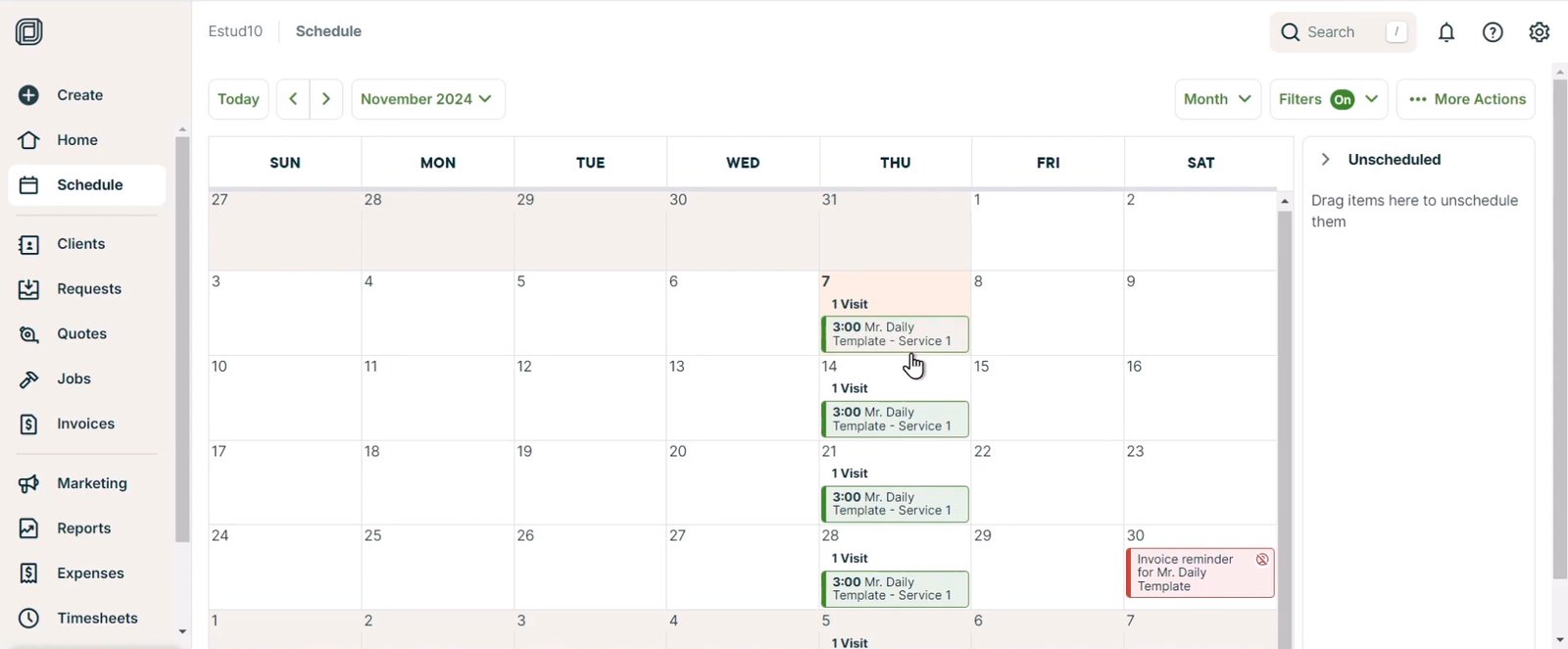
- Drag-and-Drop: Need to move a job from Tuesday to Wednesday? Just click and drag. It asks if you want to notify the customer of the change automatically.
- Route Optimization: For lawn care and pool service, this pays for the software. You dump 30 jobs onto a daily list, click “Optimize,” and Jobber rearranges them to minimize drive time.
- Deep dive into dispatch and scheduling tools.
4. Invoicing & Payments: Getting Paid Faster
Jobber wants you to get paid before you leave the driveway.
- Jobber Payments: Integrated credit card processing. Rates are competitive (typically ~2.9% + 30¢), and it supports Apple Pay and Google Pay.
- Card on File: Essential for recurring services. You can securely store a client’s card and auto-charge them after each mow/clean.
- Batch Invoicing: If you do commercial maintenance, you don’t invoice after every visit. You do the work all month, then hit “Batch Invoice” on the 30th to send one consolidated bill.
- See our guide on invoicing and payments.
5. The Mobile App: Technician Approved
User adoption is the biggest hurdle in software. If your techs hate the app, they won’t use it.
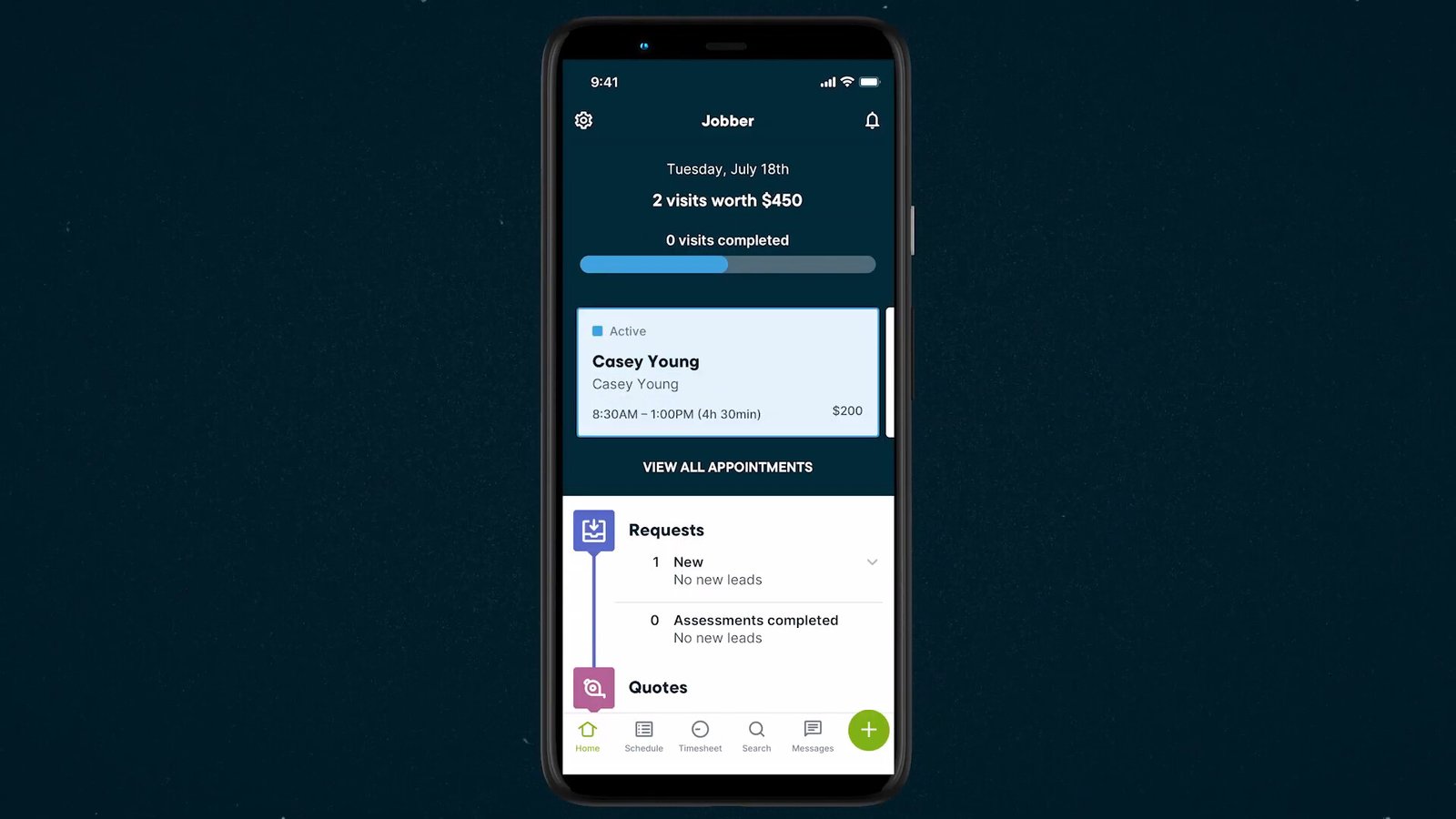
- Ease of Use: The Jobber app is simple. Techs see their schedule, tap “Start Job,” add notes/photos, and tap “Complete.”
- On My Way: With one tap, the tech sends a pre-written text to the client: “Hi, I’m on my way!”
- Offline Mode: Essential for rural areas. The app caches data so techs can work without cell service.
- Compare mobile features in our technician mobile app guide.
Industry Suitability: Who is Jobber For?
Jobber is a “horizontal” product, meaning it serves many industries. However, it fits some better than others.
1. Landscaping & Lawn Care (Perfect Fit)
Jobber dominates this space. The Recurring Jobs engine handles “Every 2 Weeks” schedules perfectly. Route Optimization saves fuel. Chemical Tracking (available on higher tiers) helps with pesticide compliance.
- Verdict: 10/10 for Green Industries.
2. Residential Cleaning (Great Fit)
Maid services love Jobber for the Card on File feature and Tip Collection (clients can add a tip when paying the invoice). The Checklists feature ensures cleaners don’t miss the “Dust ceiling fan” step.
- Verdict: 9/10 for Cleaning.
3. HVAC, Plumbing, Electrical (Good Fit for Service)
For service and repair (break/fix), Jobber is excellent. It is fast and easy. However, for large installations or commercial construction, it lacks deep features like “Good-Better-Best” proposals or serialized inventory tracking.
- Verdict: 8/10 for Service, 5/10 for Install/Construction. (See Jobber vs Housecall Pro for a better sales alternative).
Pricing Breakdown: Which Plan Do You Need?
Jobber uses a tiered pricing model. It is transparent (no “Call for Quote”), but you must watch the user limits.
1. Core Plan (~$49/mo)
- Users: 1 User.
- Best For: Solo Owner-Operators.
- Includes: Quoting, Scheduling, Invoicing, Client Hub.
- Missing: QuickBooks Online Sync, Automated Emails.
**2. Connect Plan (~$129/mo) *[Most Popular]* **
- Users: Up to 5 Users (sometimes varies by region, check site).
- Best For: Small Teams (1 Office + 3-4 Techs).
- Adds: QuickBooks Online Sync, Automated Quote Follow-ups, GPS Tracking (via FleetSharp integration), Routing.
- Note: This is usually the “Sweet Spot” for value.
3. Grow Plan (~$249/mo)
- Users: Up to 15 Users.
- Best For: Scaling Companies ($500k+ Revenue).
- Adds: Two-Way Texting, Lead Management, Mailchimp Integration, Quote “Add-ons” (Upselling), Chemical Tracking.
4. Plus Plan (~$599/mo)
- Users: Larger teams.
- Adds: AI Receptionist, dedicated support.
Warning: Jobber is not “Unlimited Users.” If you have 20 technicians, you might outgrow the standard plans or face per-user fees. Compare this to Service Fusion alternatives if you have a massive team.
Not sure if you can afford this? Use our ROI Calculator to see how much time software could save you.
Integrations: The “App Store” Approach
Jobber plays nice with others.
- Accounting: QuickBooks Online (Excellent 2-way sync). QuickBooks Desktop (Possible, but requires a sync tool and is not real-time. If you rely on Desktop, check Jobber vs FieldEdge).
- Marketing: Mailchimp (Syncs customer lists for newsletters).
- Consumer Financing: Wisetack (Offers financing on quotes).
- Automation: Zapier (Connects Jobber to Gmail, Slack, Google Sheets, etc.).
- Lead Gen: Thumbtack (Leads flow directly into Jobber requests).
- Read more about QuickBooks integration details.
Jobber vs. The Competition
How does it hold up in a head-to-head fight?
Jobber vs. Housecall Pro
This is the big rivalry.
- Jobber: Better for “Recurring Work” (Lawn, Cleaning) and Routing. Faster interface.
- Housecall Pro: Better for “Sales” (HVAC, Plumbing). Has “Good-Better-Best” visual proposals that drive higher ticket averages.
- Full analysis: Jobber vs Housecall Pro
Jobber vs. ServiceTitan
- Jobber: Affordable, easy to use, no contract. Best for <$3M revenue.
- ServiceTitan: Expensive, powerful, steep learning curve. Best for >$3M revenue.
- Full analysis: Jobber vs ServiceTitan
Jobber vs. Workiz
- Jobber: Better Client Hub and Invoicing flow.
- Workiz: Better Phone System (built-in VoIP) and Ad Tracking. Great for Locksmith/Garage Door.
- Full analysis: Jobber vs Workiz
For massive enterprise fleets, Jobber might lack customization. See how it stacks up in our Jobber vs Salesforce Field Service comparison.
Pros & Cons Summary
Pros:
- User Interface: Just beautiful. Easiest learning curve in the industry.
- Client Hub: Professionalizes your business instantly.
- Speed: fast loading, quick workflows.
- Support: Excellent chat and phone support, known for being helpful.
Cons:
- Inventory: Very basic. No multi-warehouse or purchase order management.
- Job Costing: Limited. You can see “Profit per Job” (Labor + Materials), but it lacks the depth of ServiceTitan.
- Construction: Not for big projects. No progress billing or retainage.
- QuickBooks Desktop: Weak integration compared to QBO.
Decision Checklist: Is Jobber Right for You?
- [ ] Are you in Residential Service? (Yes = Good).
- [ ] Do you have Recurring/Repeat jobs? (Yes = Excellent, Jobber shines here).
- [ ] Do you use QuickBooks Online? (Yes = Seamless).
- [ ] Do you need Route Optimization? (Yes = Essential).
- [ ] Do you have complex inventory needs? (Yes = Look elsewhere).
FAQ: Jobber Review
Does Jobber have a free version?
No. Jobber offers a 14-day free trial, but after that, it is a paid subscription. There is no “Forever Free” tier.
How much does Jobber cost for 1 person?
The “Core” plan is designed for solo operators (1 user) and typically costs around $49–$69 per month, depending on if you pay monthly or annually.
Does Jobber work offline?
Yes. The Jobber mobile app has a robust offline mode. Technicians can view their schedule, start timers, and add notes while out of cell range. The data syncs to the cloud once they reconnect.
Can I track employee time in Jobber?
Yes. Technicians can clock in and out of the app for the day (generating timesheets for payroll) and also clock into specific jobs (for labor costing). You can edit these timesheets in the office before running payroll.
Does Jobber integrate with QuickBooks Desktop?
Yes, but with caveats. Jobber offers a sync tool for QuickBooks Desktop, but it is not a “live” cloud sync like the QuickBooks Online integration. It requires running a sync manager on your server/PC. If QBD is critical to you, FieldEdge might be a smoother experience.
Is Jobber better than Housecall Pro?
It depends on your trade. For Landscaping, Lawn Care, and Cleaning, Jobber is generally better due to its routing and recurring job handling. For HVAC and Plumbing, Housecall Pro is often preferred for its sales proposal tools.
Does Jobber have GPS tracking?
Jobber integrates with FleetSharp (a GPS hardware provider). If you install FleetSharp trackers in your vans, you can see live vehicle locations directly on the Jobber map. It is not “native” GPS (tracking the phone), but rather hardware-based vehicle tracking.
What are the fees for Jobber Payments?
Jobber Payments typically charges around 2.9% + 30¢ per transaction for credit cards. Bank transfers (ACH) are usually cheaper (often 1% with a cap). These rates are competitive with Stripe and Square.
Can I send automated text reminders?
Yes. On the “Connect” and “Grow” plans, you can set up automated text message (SMS) reminders to go out 24 hours or 1 hour before a visit. This drastically reduces “no-shows” and locked gates. Learn more about customer communication.
Sources
- Jobber Pricing (Verified Jan 2026) – https://getjobber.com/pricing
- Capterra Reviews: Jobber (Verified Jan 2026) – High marks for “Ease of Use.”
- Jobber Industries (Verified Jan 2026) – https://getjobber.com/industries
- Stripe / Jobber Payments (Verified Jan 2026) – Payment processing infrastructure.